USB ports are small, but they play a huge role in how reliable your device feels every day. Whether you use USB-C for charging, data transfer, docking stations, external drives or phone accessories, a dirty port can quickly create annoying problems. Dust, lint and small particles can build up inside the connection area and stop the cable from sitting correctly.
That buildup can lead to slow charging, unstable charging, random disconnects, poor data transfer, loose cable fitment or a device that only charges when the cable is held at a certain angle. In many cases, the port is not broken yet — it is simply contaminated.
Common signs of dust inside a USB port
One of the first signs is an unreliable connection. The cable may feel like it clicks in less firmly than before, or the device may start and stop charging when moved. You may also notice slower charging speeds, failed data transfers or connection drops when using external accessories.
With USB-C devices, this can be especially confusing because the same port is often used for charging, data transfer, video output and docking. A small amount of dirt in the port can affect more than one function.
How to inspect a USB port safely
Before cleaning, turn the device off and disconnect all cables. Use a flashlight to carefully inspect the port. Look for dust, pocket lint, dirt or anything blocking the connector area.
Do not force a cable into the port if it does not sit properly. Forcing the connection can compact the dirt even further or damage the internal contacts.
Safe USB port cleaning tips
For basic maintenance, use gentle cleaning methods. A soft anti-static brush, a small air blower or careful compressed air can help remove loose dust. Work slowly and avoid pushing dirt deeper into the port.
Avoid metal tools such as pins, needles or paperclips. These can scratch or bend the internal contacts. Also avoid using too much liquid, because moisture inside a charging port can cause new problems instead of solving the old one.
Do not forget the cable
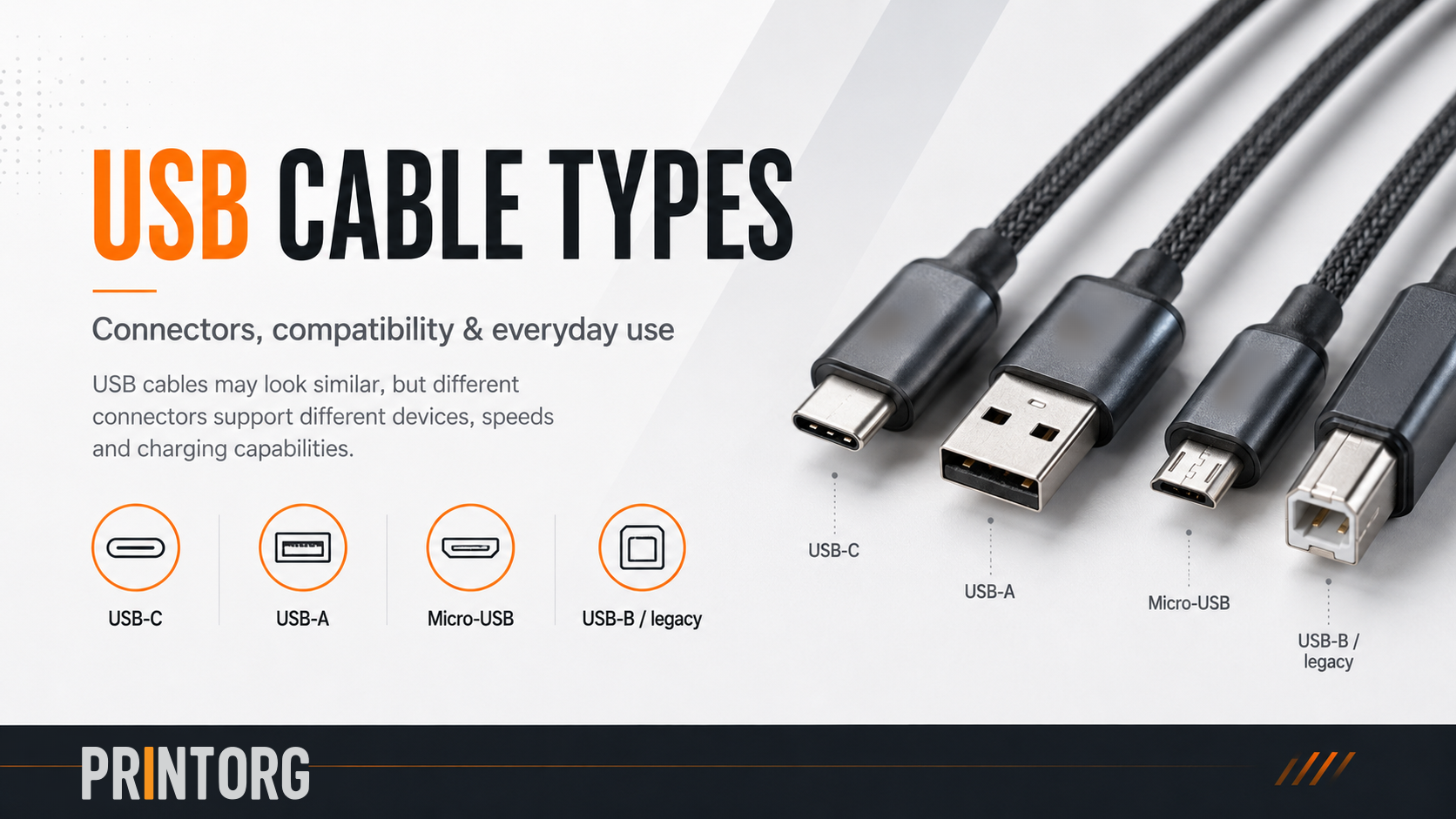
The port is only one side of the connection. A dirty or damaged cable connector can also cause charging and data problems. Check the USB-C connector itself for dust, damage, bent parts or worn housing. A clean cable and a clean port give the best chance of a stable connection.
When cleaning is not enough
If the port still feels loose after cleaning, or if the device keeps disconnecting, the problem may be more serious. The port could be worn, damaged or internally loose. At that point, professional inspection is usually safer than continuing to clean or force the connection.
Regular USB port maintenance is simple, but it can prevent unnecessary frustration and repairs. Clean ports help maintain reliable charging, stable data transfer and better long-term device performance.